Andronix
You can run Debian, the stable Linux distro many servers and desktops are built on, on an Android phone or tablet without rooting it. With Andronix 10.1, Debian and its desktop run right inside the Andronix app: you pick Debian, set up your user, and the desktop opens in the app. There’s nothing else to install and no command to paste. Nothing on Android itself is changed, and you can remove Debian at any time.
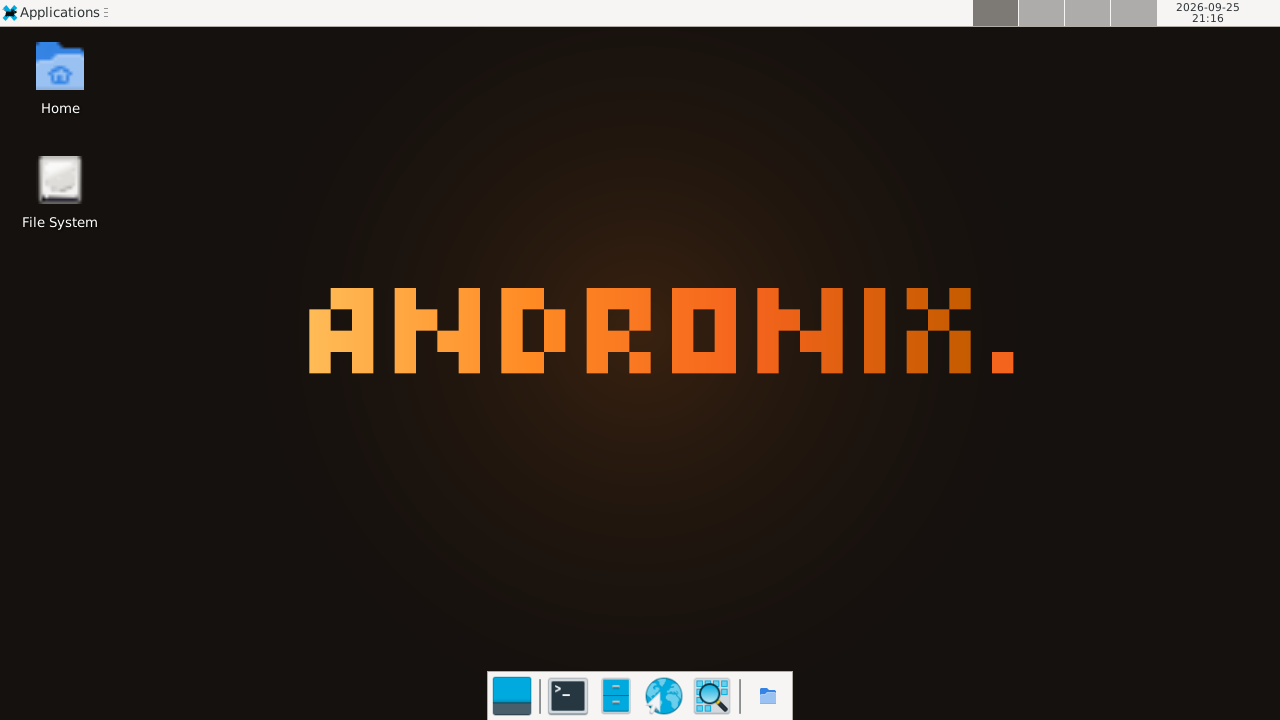
What you get
- Debian 13 (“trixie”), the current stable release.
- A desktop of your choice: XFCE, LXQt, MATE or KDE Plasma, or the command line only.
- Firefox ESR, Debian’s own long-term-support Firefox.
- Sound through the phone’s speakers.
- A normal user, not root. Use
sudofor admin commands, like on a Linux PC.
What you need
| Android | 8 or newer. No root. |
| CPU | A 64-bit ARM processor (arm64). Almost every phone from the last few years has one. |
| Free storage | About 1.6 GB for Debian with XFCE. The app tells you how much it needs before it starts. |
| RAM | No minimum. KDE Plasma needs about 4 GB. |
| Apps | Only Andronix, from Google Play. |
Full details: Requirements. On Android 7 or a phone without an arm64 processor, see On older phones: with Termux.
Step 1: Install Andronix
Install Andronix from Google Play and open it. On Home, under Install Linux, tap Linux distros.
Step 2: Pick Debian and a desktop
Choose Debian, then a desktop:
| You want | Pick |
|---|---|
| Our pick for most people | XFCE |
| A lighter desktop | LXQt |
| A classic desktop with menus at the top | MATE |
| The most complete desktop (about 4 GB of RAM) | KDE Plasma |
| No desktop, just a terminal | Command line only (no desktop) |
On a device with less than about 4 GB of RAM, the app warns you about KDE Plasma and suggests XFCE. Not sure which to pick? See Choose a distro and desktop.
Step 3: Set up your user
On Set up your user, enter a User name (lower-case letters and numbers) and a Password (at least 4 characters), then tap Continue. The root account stays locked; use sudo with this password for admin work.
Step 4: Wait for the install
The app shows each step as it goes: checking your device, downloading and unpacking Debian, installing the desktop and the web browser, and setting up your user. It usually takes 5 to 30 minutes, depending on your phone and your connection.
You can leave the app: the install keeps going in the background, with a notification that shows the step. If it stops, the app says what went wrong and offers Try again.
Step 5: Open the Debian desktop
When it’s done, tap Open the desktop. For a command-line install, tap Open the terminal instead. The first start can take a minute.
Later, Debian is on Home under Your Linux. Tap its row to open the desktop, or Terminal to open Debian’s terminal. Try it:
cat /etc/os-release
sudo apt update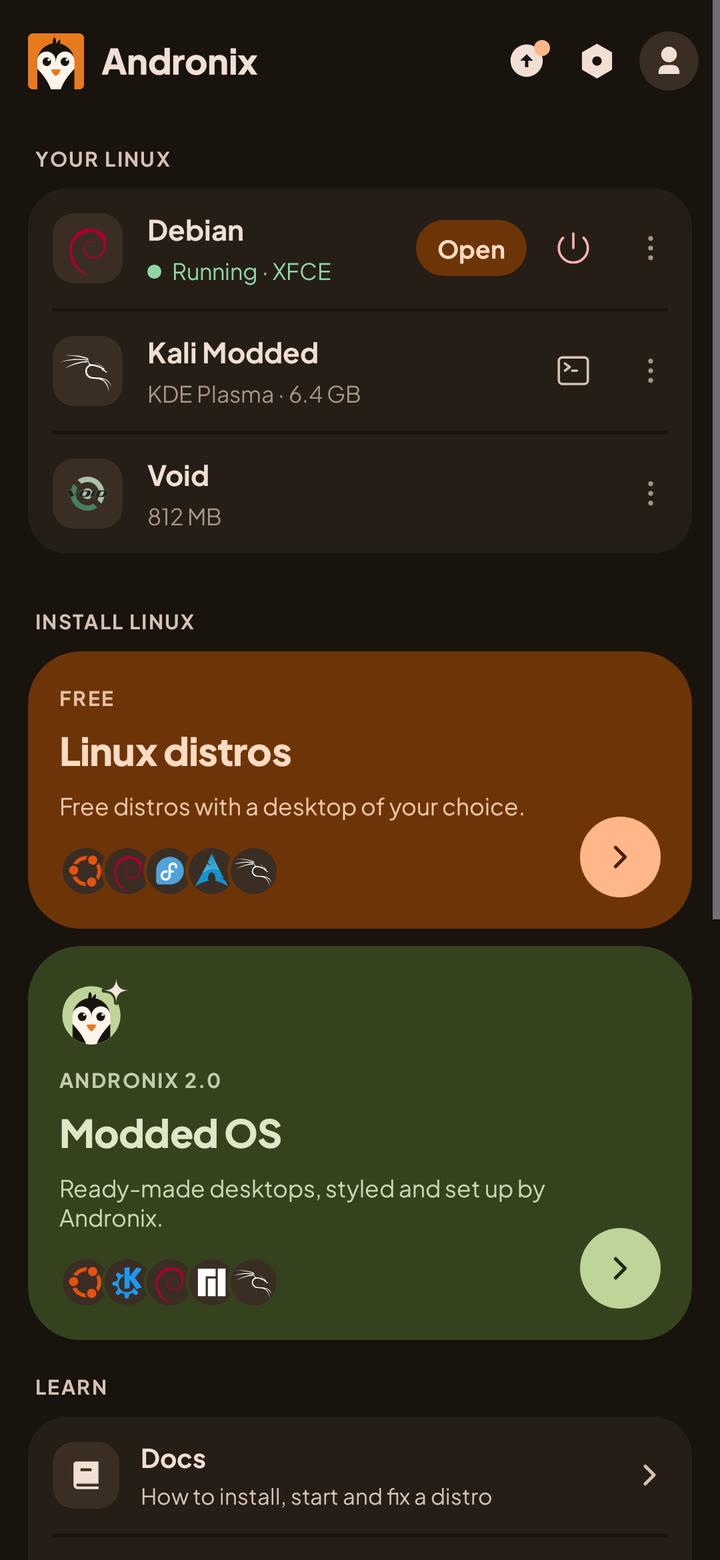
More: Install in the app and Your Linux on Home.
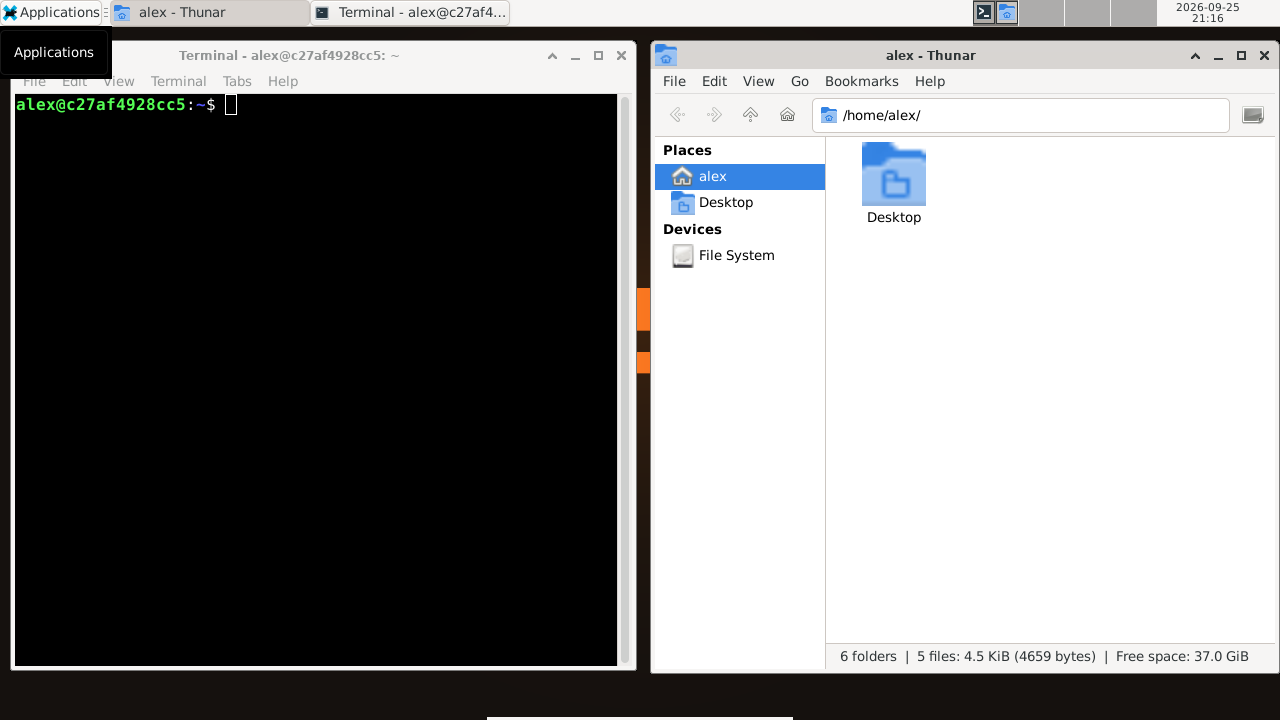
Keep Linux running in the background
Android can stop apps in the background. If battery optimisation applies to Andronix, the app shows Keep Linux running once: tap it, so Android doesn’t stop Debian while you use other apps. If Android stops it anyway, you see Android stopped Debian; tap it to start Debian again. See Process completed (signal 9).
Using Debian day to day
| To | Do this |
|---|---|
| Open the desktop | Home > Your Linux, tap Debian’s row |
| Open Debian’s terminal | Tap Terminal on Debian’s row |
| Update Debian’s packages | sudo apt update && sudo apt upgrade, in Debian’s terminal |
| Install a program | sudo apt install <name> |
| Add Python, Node.js, Java, Go or PostgreSQL | sudo andronix pack add python (or node, java, go, db) |
| Share files with Android | Save them to ~/Android/Download or ~/Android/Documents |
| Remove Debian | Home > Your Linux > ⋮ > Remove |
What you save in ~/Android/Download and ~/Android/Documents appears in Download/Andronix and Documents/Andronix on your phone. To bring a file in, use Import in Settings › Linux › Android files in Linux. Your Linux home also shows in Android’s Files app. See Android files in Linux, Keep it updated and Dev packs.
There’s no backup inside the app yet, so keep copies of important files in the shared folders.
What doesn’t work
Debian runs in user space with proot, on top of Android’s own kernel, so some things are out of reach without root:
- Snap, Flatpak and Docker don’t run. Use Debian’s
aptpackages instead. - No VPNs, USB drives or other hardware access. Android manages the network and hardware, not Debian.
- No microphone yet. Sound output works.
- GPU acceleration is experimental and off by default. You can try it in Settings › Linux › GPU acceleration; see GPU acceleration.
The full list: Limitations.
Common questions
Debian or Ubuntu?
Both work well. Debian is a good first choice: it’s stable, and its Firefox ESR is Debian’s own package. Ubuntu has newer packages in its 26.04 LTS release and a larger set of guides online. See How to install Ubuntu on Android and Choose a distro and desktop.
Do I need root, or to unlock the bootloader?
No. Nothing is flashed and nothing on Android is modified. Debian lives in the Andronix app. To delete it, open Home > Your Linux, tap ⋮ next to Debian, then Remove.
Is it slow?
On a mid-range phone, a light desktop like XFCE or LXQt is usable for browsing, coding and office work. If KDE Plasma feels heavy, XFCE and LXQt are lighter.
Can I get a Debian that’s already set up?
Yes: Modded Debian XFCE is one of the Modded OS editions, with a themed desktop and apps already installed. It’s sold in the Andronix app.
On older phones: with Termux
On Android 7, on a phone without a 64-bit ARM processor, or if you prefer the command-line installer, Andronix runs Debian in Termux instead. Install Termux from F-Droid (recommended), the Termux project’s GitHub releases, or Google Play (Android 11 and newer), then paste this line into it:
(curl -fsSL --retry 4 --retry-delay 3 https://dl.andronix.app/get.sh -o $PREFIX/tmp/get.sh || curl -4 -fsSL --retry 2 --retry-delay 3 https://dl.andronix.app/get.sh -o $PREFIX/tmp/get.sh) && sh $PREFIX/tmp/get.sh install debian --de xfceThe whole Termux setup, with the desktop: Andronix with Termux and the docs.
Next steps
- Your Linux on Home: open, stop and remove your distros.
- Choose a distro and desktop: Ubuntu, Kali, Fedora, Arch and more install the same way.
- Stuck? Linux in the app: limits and problems, or ask on Discord.